Save
Recipe capture from real life
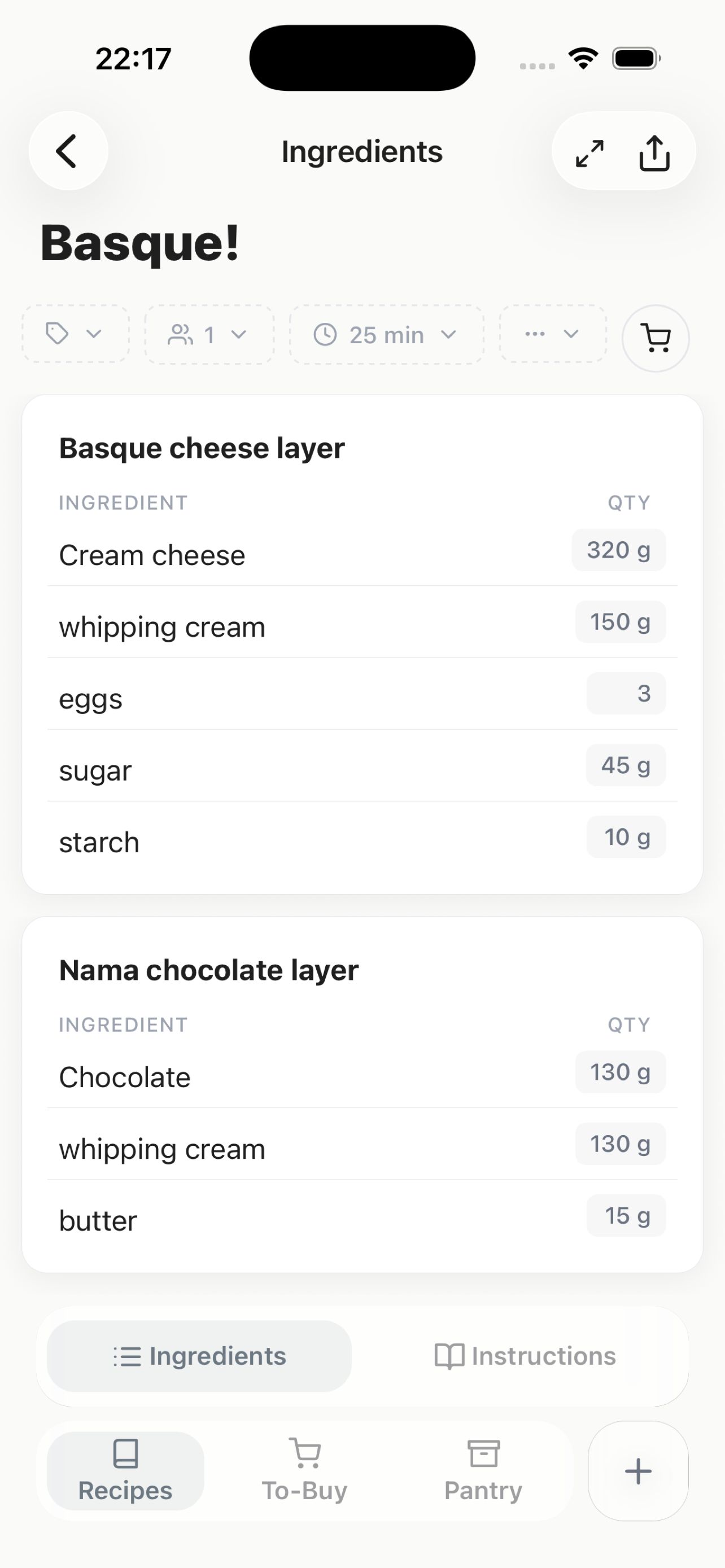
Bring in recipes from links, plain text, screenshots, and handwriting instead of manually rebuilding everything from scratch.
Now on the App Store
CookNotes is your kitchen helper for saving recipes, organizing a growing recipe collection, and keeping pantry items and grocery lists in one place. Bring in recipes from links, plain text, screenshots, and handwritten notes instead of losing them across apps.
Core use
Recipes, folders, tags, pantry, grocery lists, scaling
Optional account
Sign in for sync, premium features, and credit purchases
Credit usage
Credits are used only for premium features
CookNotes is available now on the App Store for iPhone and iPad.
We do not force you to sign up for an account. You can keep your normal recipe collection, grocery lists, and pantry fully local on your device. But we also want to be clear about pricing: if you want the premium features that skip more of the manual work, those are paid features and they need an online account.
App Preview
Basic Features
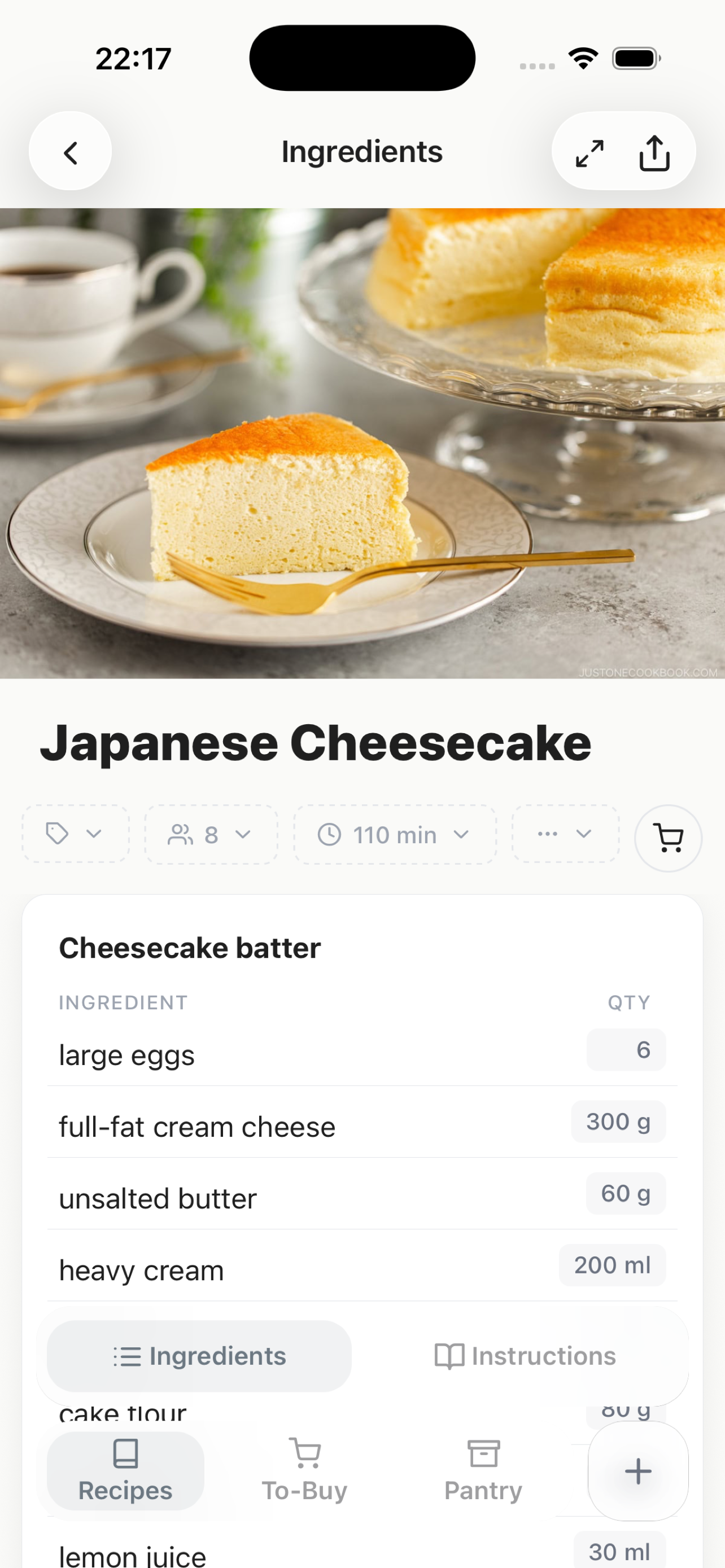
CookNotes is built around the basics people actually use every week: saving recipes, finding them fast, cooking with richer instructions, setting timers, checking ingredients, and shopping without bouncing between apps.
Save
Bring in recipes from links, plain text, screenshots, and handwriting instead of manually rebuilding everything from scratch.
Organize
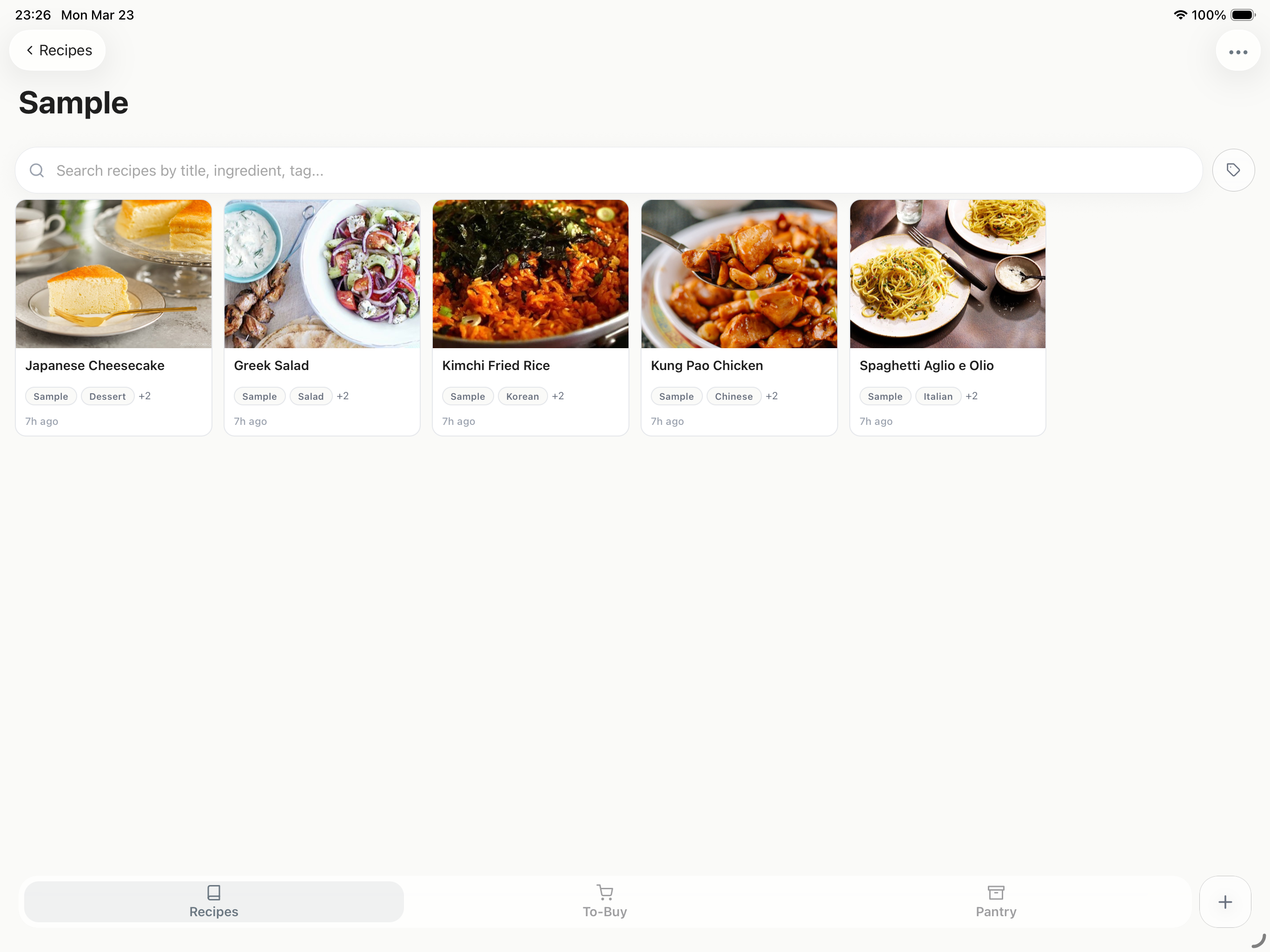
Keep a clean recipe library with nested folders, flexible tags, and search so weeknight favorites are easy to pull up later.
Cook
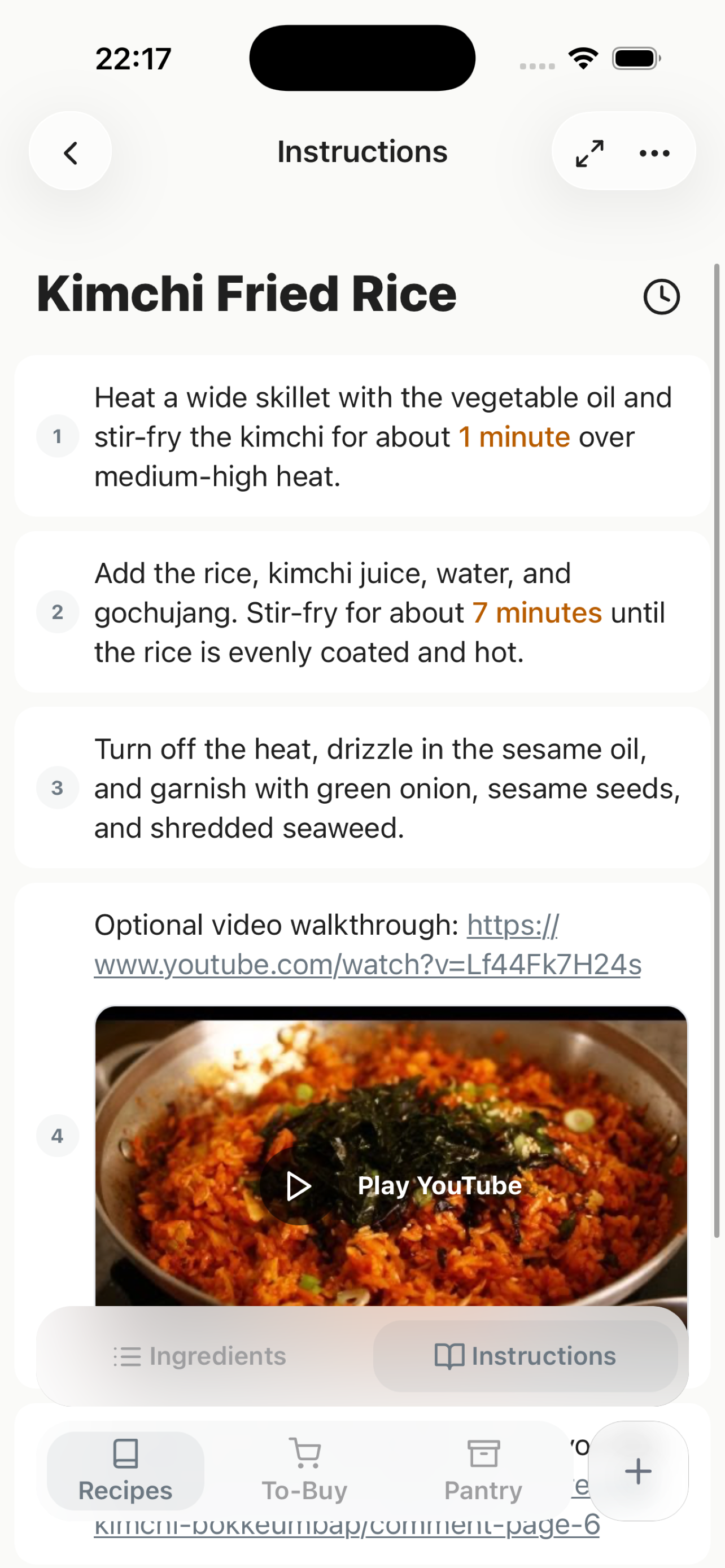
Mix text, links, and media in your recipe instructions, and easily reorder steps by dragging so everything stays right where you cook.
Timer
Set cooking timers without leaving the recipe screen or juggling a separate timer app in the middle of dinner.
Split View
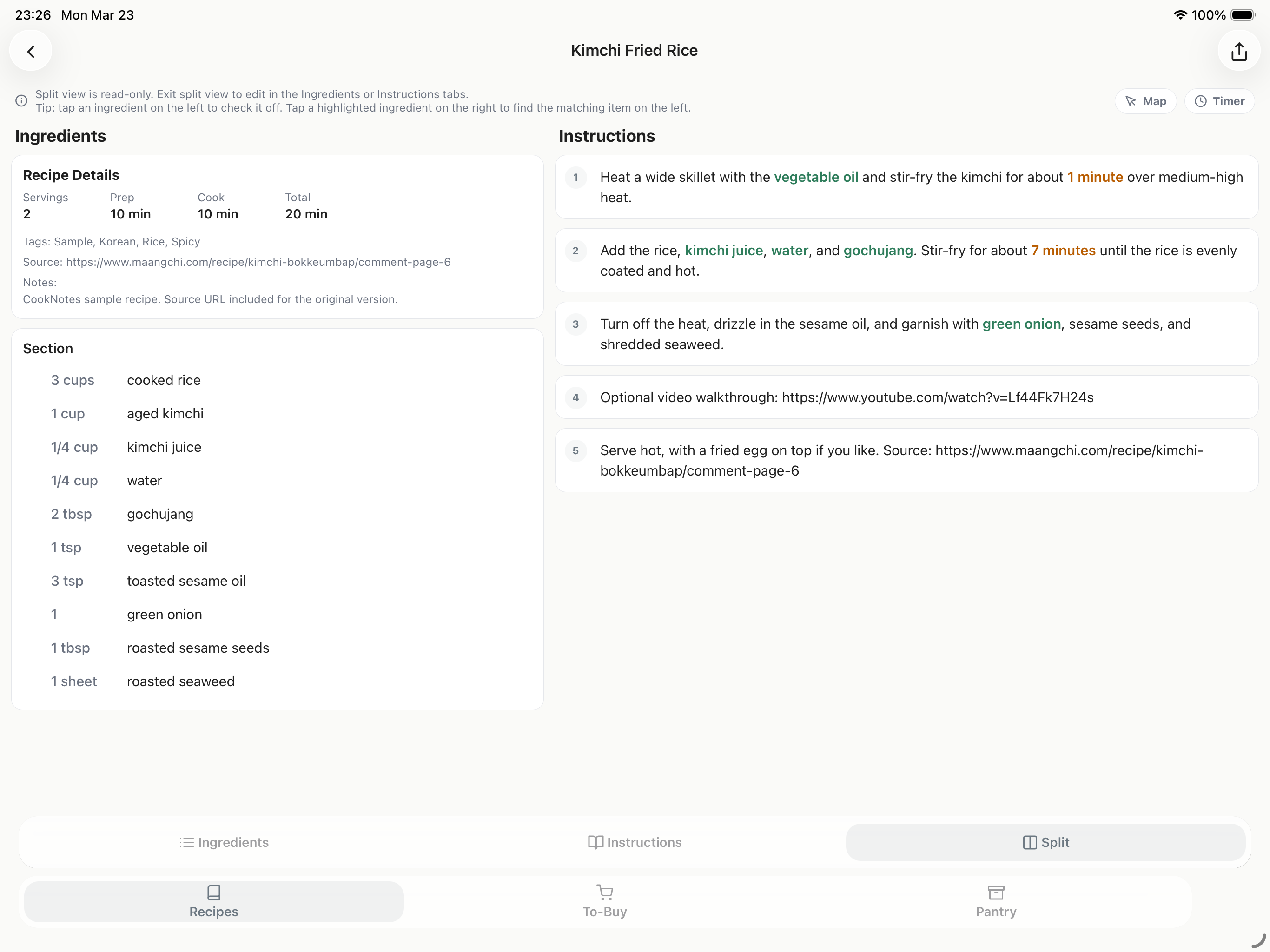
Use split view to keep a recipe open while checking ingredients, pantry items, or shopping details at the same time.
Plan
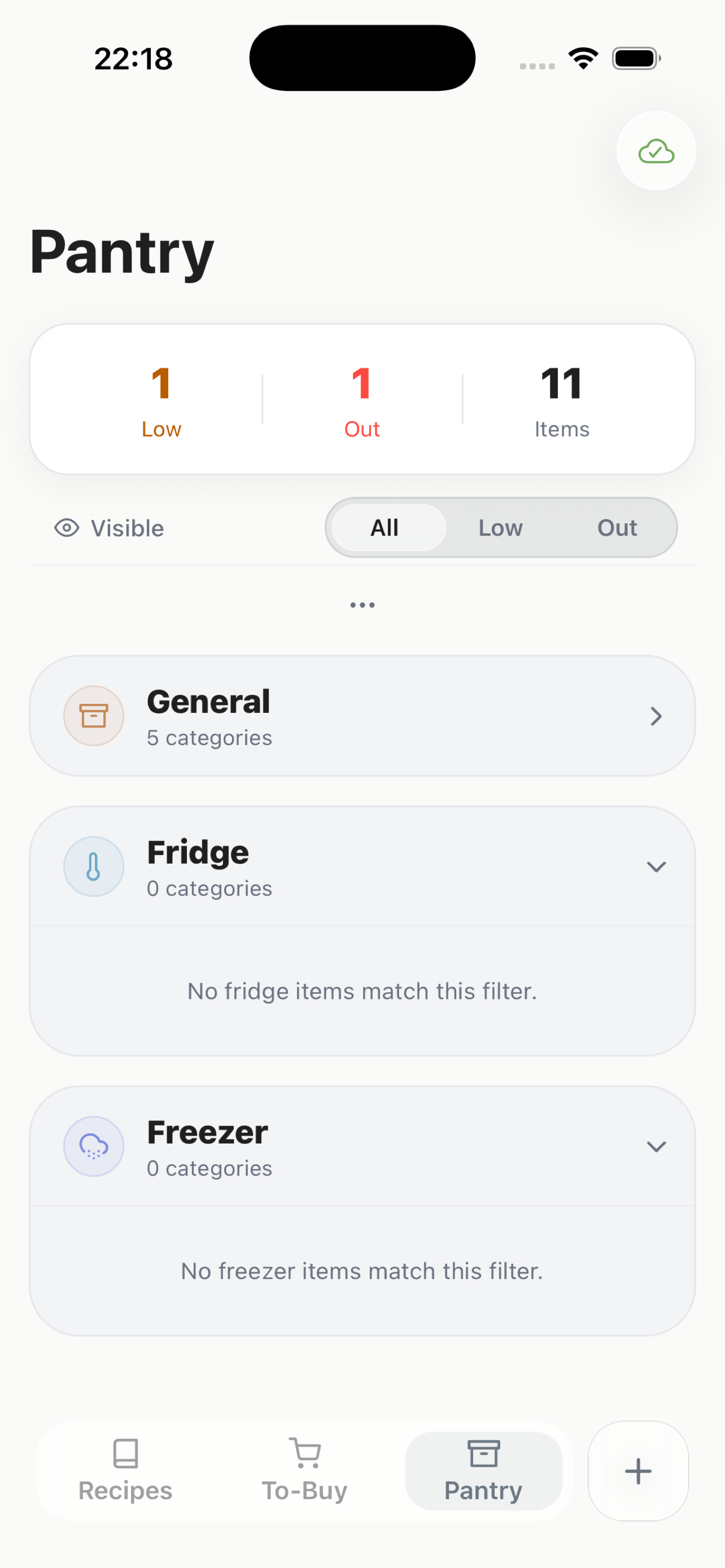
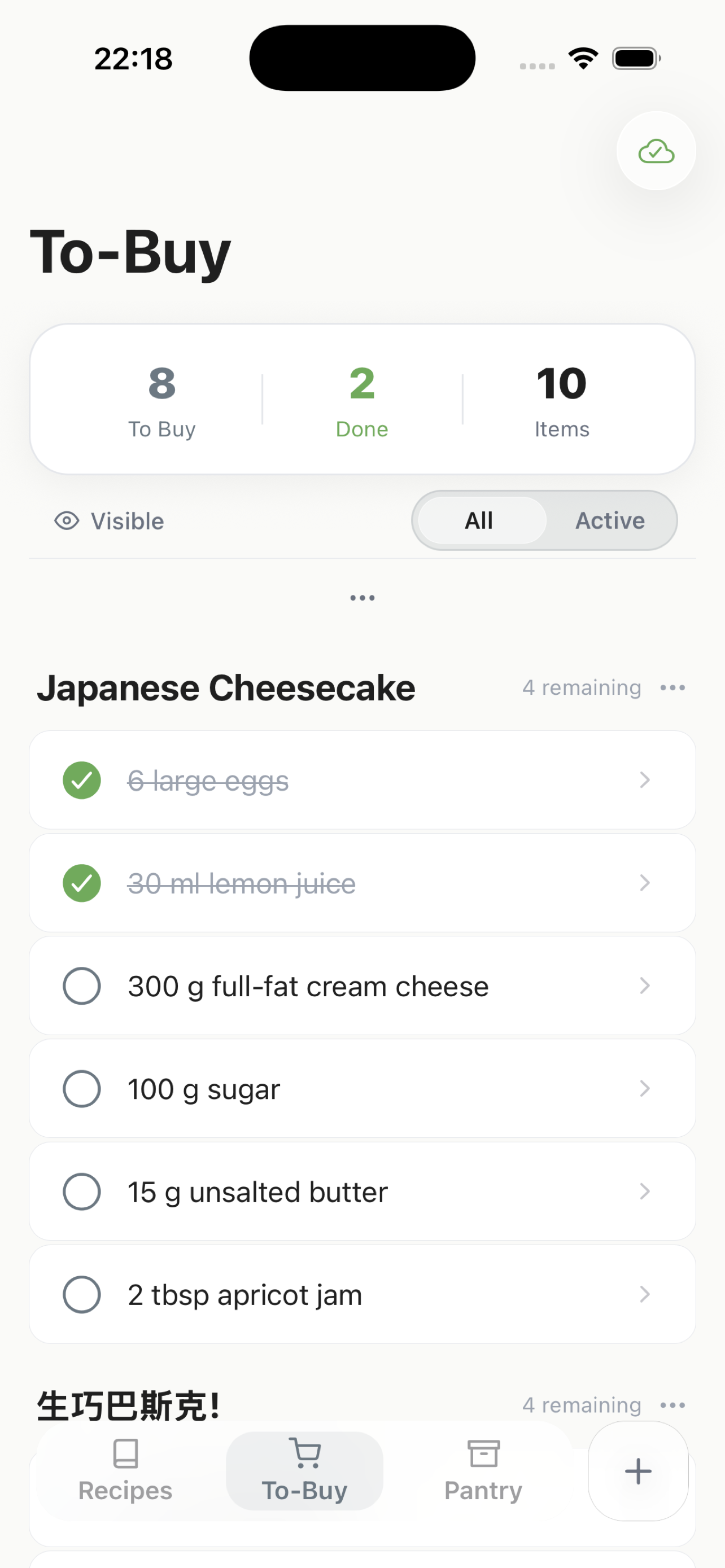
Track pantry items, build grocery lists from recipes, and keep your kitchen planning in one place.
Special Features
Beyond recipe storage, CookNotes includes higher-value tools for cleanup, conversion, planning, and discovery. Some of these are premium features that require an account plus credits.
Smart Import
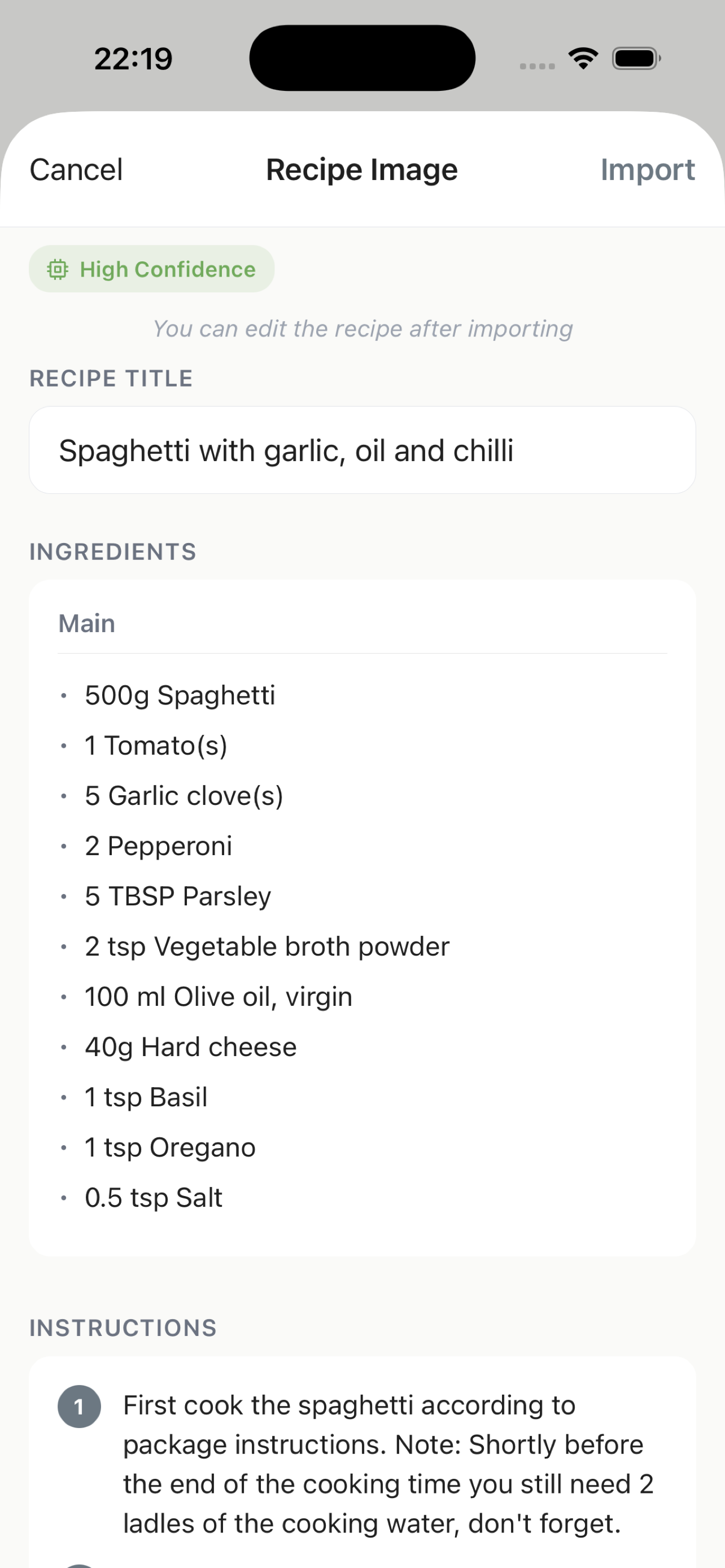
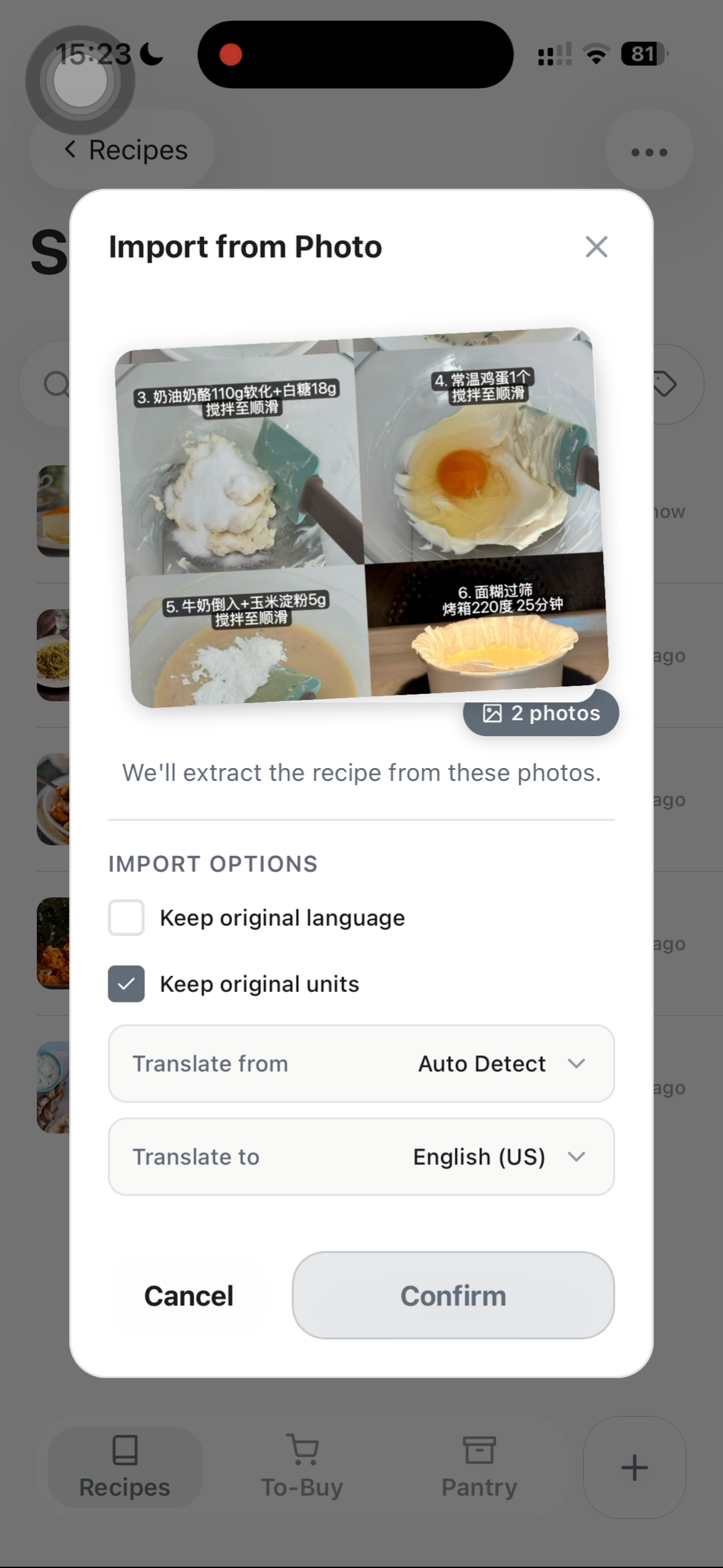
Import recipes from URLs, text, screenshots, and images so ingredients and instructions are easier to clean up and save.
Translation
Translation features help you work with recipes from different languages without having to leave the app and rebuild the text manually.
Pantry Scan
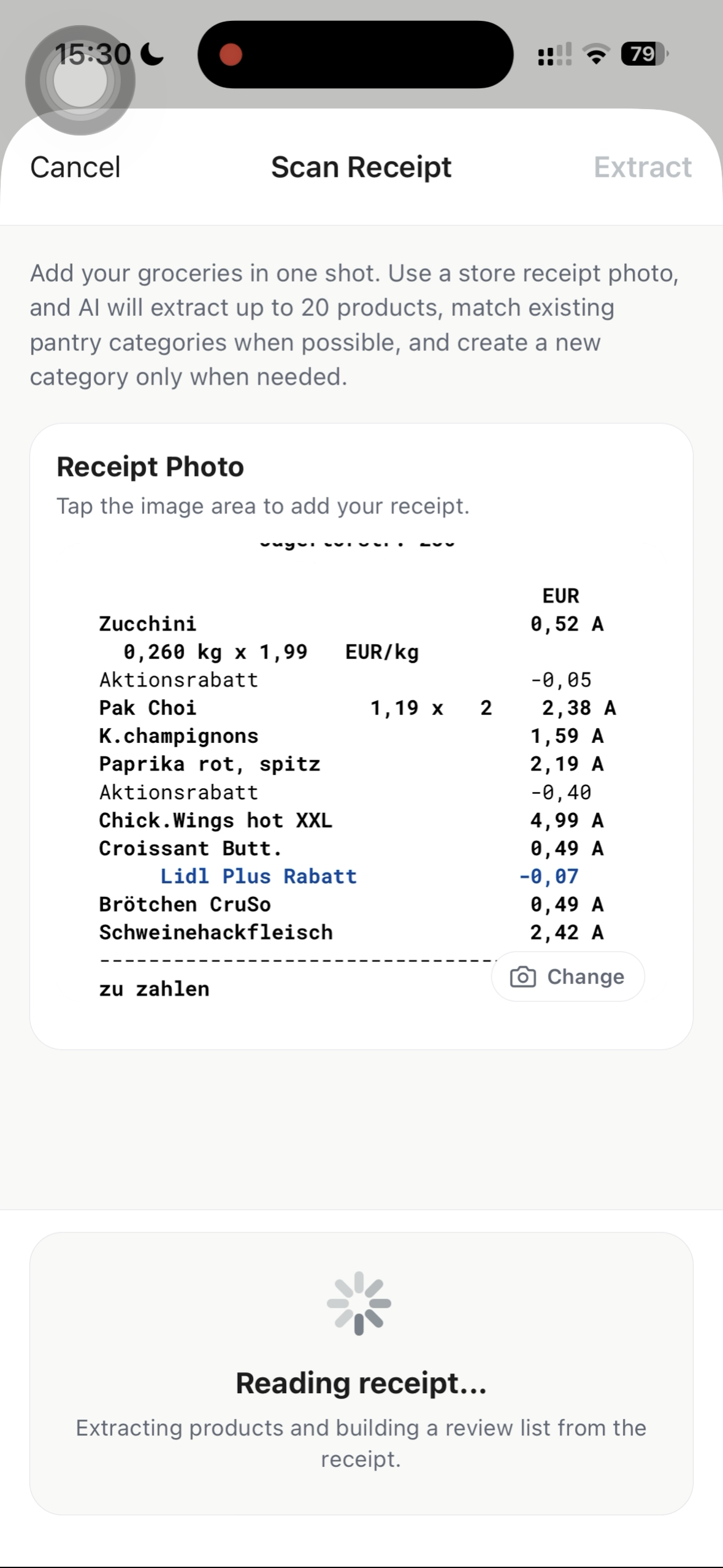
Pantry scan is designed to speed up pantry entry when typing everything one by one would be a chore.
Angebote & Prospekte
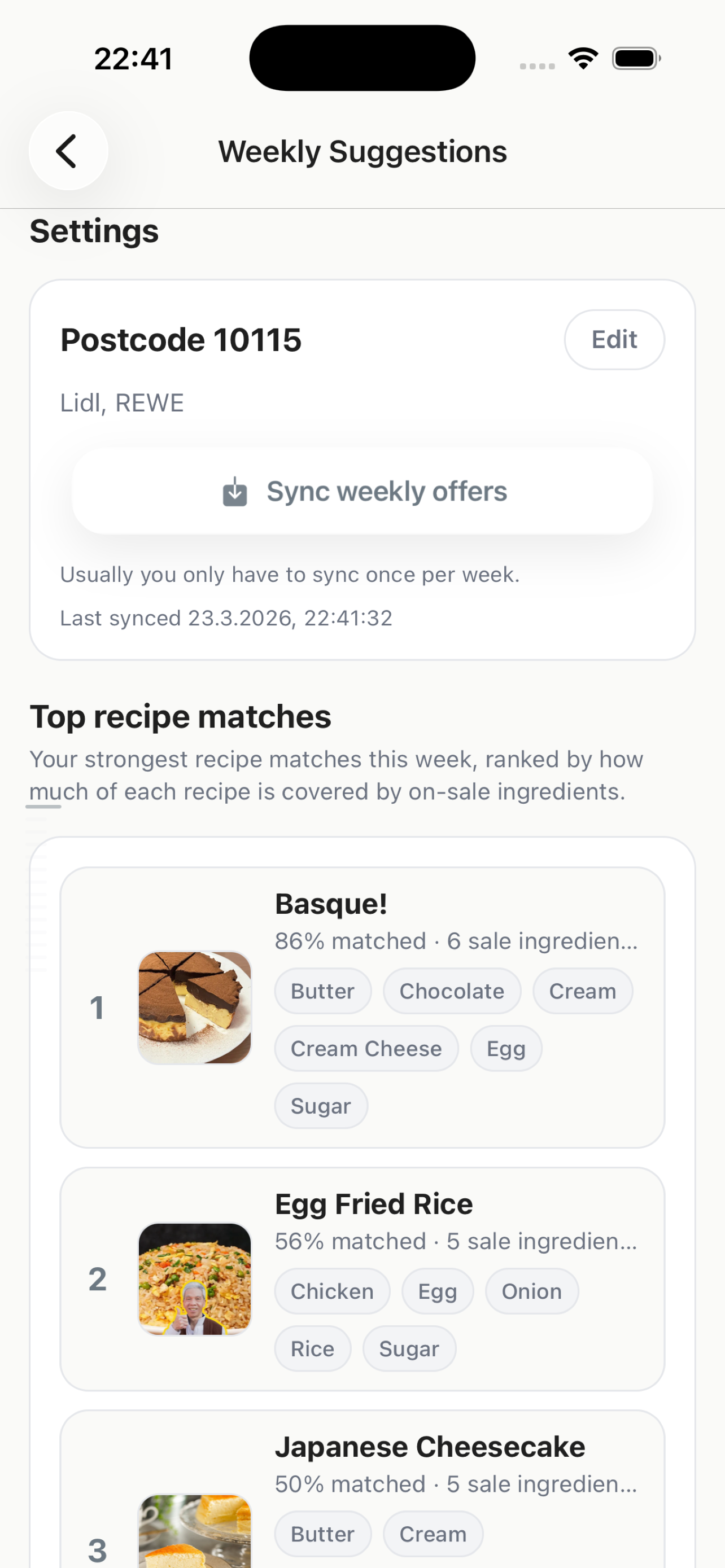
CookNotes can surface weekly Angebote from German supermarket Prospekte and match them against your saved recipes. Right now this feature covers retail supermarkets only.
Pricing
One-time app purchase, plus extra credits only for premium features.
App Purchase
One-time €0.99 on the App Store. Everything most people need stays local.
Additional Credits
You need an account for these features, and sign-up is free. New users get 10 starter credits to try how they work.
20 credits
€1.99
50 credits
€3.99
100 credits
€7.99
Basically, 1 import or 1 scan = 1 credit.
FAQ
No. You can stay in guest mode and keep your recipe collection, grocery lists, and pantry data on your device. After you sign in, your local data is uploaded to CookNotes cloud so it can sync with your account.
Credits unlock premium features. Your saved recipe library is not sent through premium processing unless you choose a feature that needs it.
No. The app purchase and premium features are separate. Premium features are paid with credits because they cost us real money to run.
Yes. CookNotes supports local-first use. If you later sign in, you can move into the sync-based path for account features.
Technically yes, but it will not always be perfectly clean because CookNotes prioritizes local data and sync follows a last-updated-wins approach. If you want the cleanest switch, make sure sync is fully finished, log out, clear local data, and then sign in with the new account.
No, not directly. But you can take a screenshot or copy the caption text and use Smart Import from an image or pasted text. Tip: choose Import -> Images -> Long Screenshot if you do not need to crop the screenshot.
Yes. In ingredients, press Enter to move to the next row and add a new ingredient under the same section. In instructions, press Enter twice to move to the next block.